
Ivanna Holubovska
AuthorSetting up server-side tagging can be an uphill battle. Except for configuring a tagging server for your sGTM, there are so many different clients, tags, variables, and triggers that need tweaking to work seamlessly.
In this blog post, I want to talk about server GTM logs and how logs help diagnose problems with server-side tagging.
Logs is an essential tool to use when setting up server-side tagging. It can help you troubleshoot any problems with requests, missing data, or even determine how the vendor processed a request.
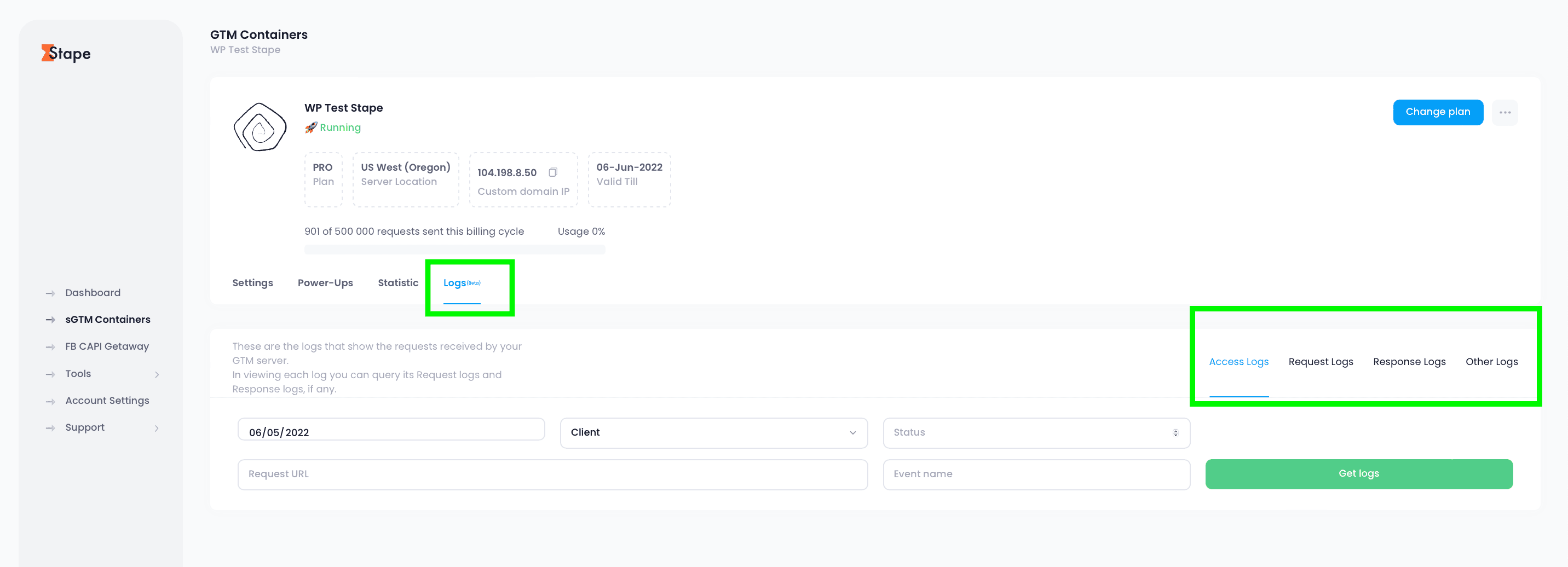
Stape offers several types of logs for users to view:
Stape's Pro and Pro+ plan users get access to logs for the last 3 days. And for Business and higher plans - logs are available for the last 10 days. Each type of log has its own filter options like date range or client name, which will help ensure specific events don't get lost among others - perfect when you need quick troubleshooting. Downloading those requests onto CVS is also possible.
We'll look at each type of log and see how they might help set up server-side tagging. I'm also going to show some examples of ss tracking problems that logs can help with so that everything makes sense together in no time flat.
To see logs, log in to your stape.io account, open the sGTM container, and go to the Logs tab.




Comments