
Ivanna Holubovska
AuthorOne of the ways to use server-side tracking is to send data directly from your server endpoint — the Google Tag Manager server container. This way, you can avoid using front-end code and JavaScript.
This guide will show you how to send requests to the GTM server using webhooks, how to see and test webhook data in the server GTM debugger.
Webhooks are one of the ways websites or apps can interact with each other. By using webhooks, you can send real-time data from one application to another whenever the event occurs.
This exchange happens via webhook URL. A webhook URL is provided by the receiving application and acts as a unique identifier that the other application can call when an event occurs.
Let’s say you use Stripe to accept payments on your site. Webhooks is one of the ways Stripe can interact with your CRM to send information about the new charges to the CRM. Another popular way of using webhook is to create a new user in the database when a user fills out a contact form on the website.
Let’s say you want to use pure server-side tracking without using the GA script as a data source for the server container. How can you do that? Where will the server container take data from? One of the ways is to send data to the SGTM directly from your CRM. To do this, you can use webhooks.
The tricky part starts when you want to test and see data from incoming requests in the server preview. You can see the requests in the server preview mode either because of cookies (gtm_preview, gtm_auth, gtm_debug) or HTTP preview header.
Using 3rd party cookies is not an option when you want to use webhooks. The only alternative to see incoming webhook in the server GTM is the X-Gtm-Server-Preview HTTP header.
We added a new feature to the stape.io admin console that adds Server Preview Header and helps to debug incoming HTTP requests. The logic works like this: you use your server tagging URL inside the webhook URL and add a request path. At the same time, you should add the server GTM preview header in your Stape admin console.
After the preview header and webhook URL are set up, you can test incoming webhooks. You should use the data client as a processor for the incoming webhook requests.
It all may sound complicated, but I have a detailed description below. It was created based on a WordPress webhook. This webhook triggers when the user fills out a contact form and sends contact form details to the server container.
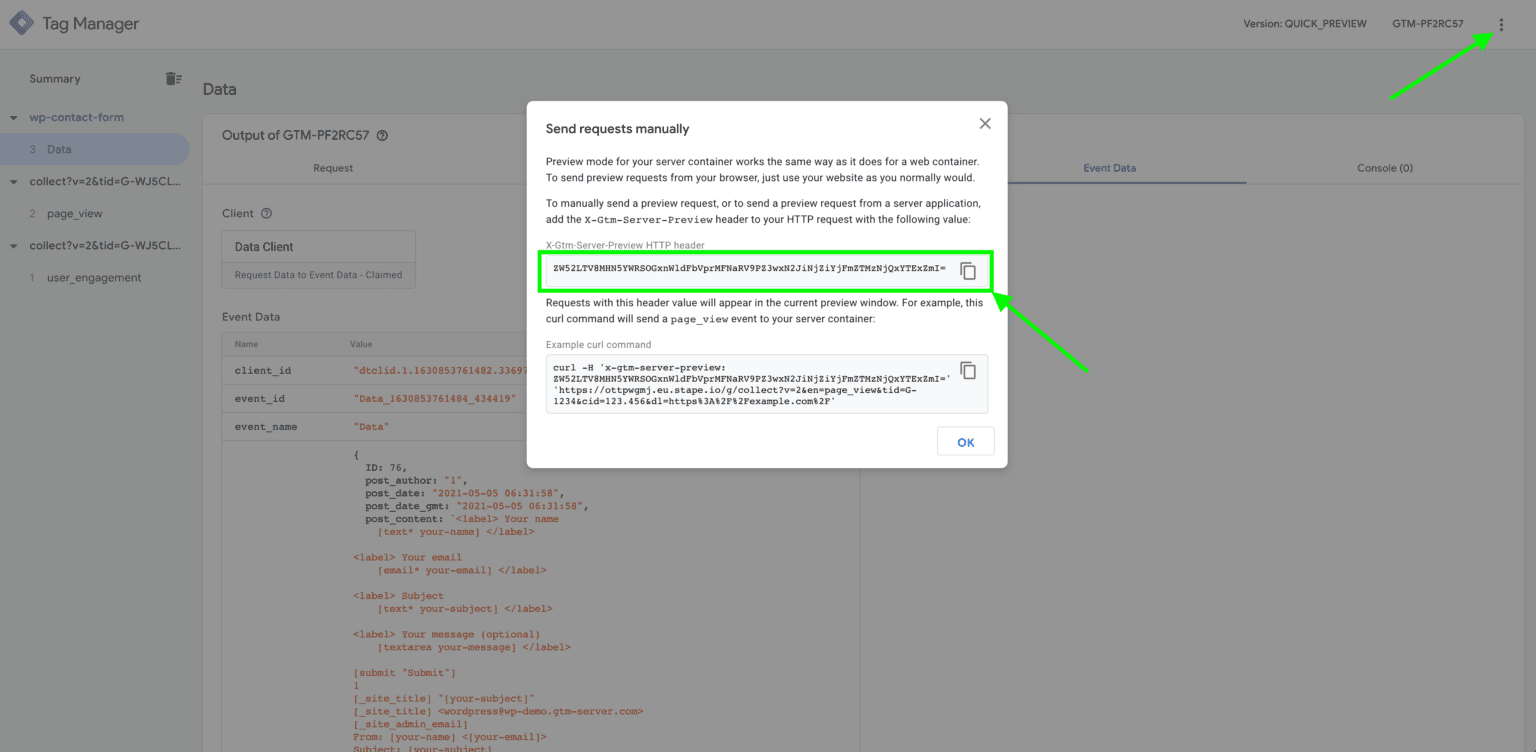
2. Open the GTM server preview mode and copy the X-Gtm-Server-Preview HTTP header. Click three dots in the top right corner -> Click Send requests manually -> Copy the X-Gtm-Server-Preview HTTP header.
3. Open your stape.io account -> Click settings on the right side of the container for which you want to set up a webhook -> Click preview header config -> Paste the X-Gtm-Server-Preview HTTP header that you’ve copied in the previous step -> Click save.




Comments