Setting up a cloud tagging server is the first step when implementing Google Tag Manager server-side tagging on your site, and it can be challenging. It may seem like an overwhelming task at first glance because this new method requires more technical knowledge than what was used previously with traditional web tracking.
Today's blog post will discuss errors and problems you might face while setting up your sGTM cloud server and how to fix them.
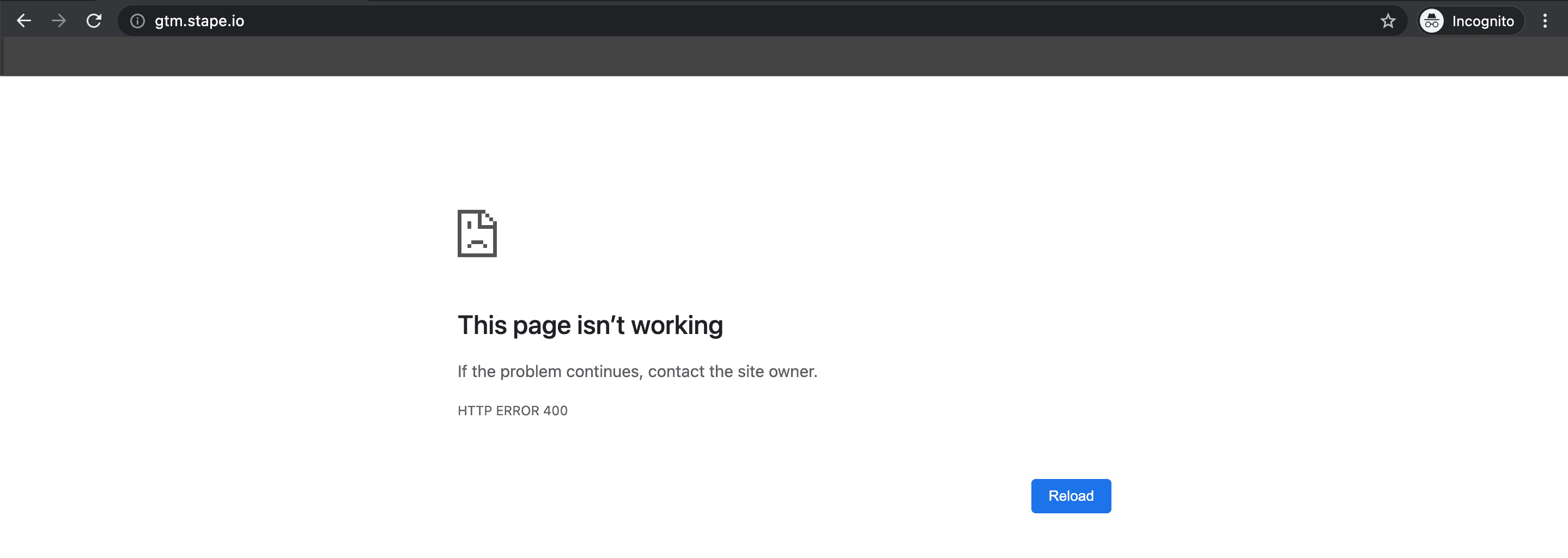
After you’ve set up a tagging server for sGTM, you might decide to open the tagging server URL in your browser. If you do so, you’ll see a response “HTTP ERROR 400. This page isn’t working”. Seeing HTTP ERROR 400 is correct behavior. It does NOT mean that there is something wrong with your server GTM. It just means that no clients claimed the request.
To test if your tagging server works correctly, you need to add /healthy at the end of the tagging URL and open it in your browser. You should see ok in the response.

Another way to check if your tagging server URL works is by opening server GTM and testing requests in the debug mode. If you see requests coming into the sGTM debugger, the cloud server was set up correctly. Note that you will see requests only if you configure them. There won’t be any requests by default.




Comments