
Ivanna Holubovska
AuthorServer Google Tag Manager can accept data from multiple sources like websites, CRMs, webhooks, etc. With the latest integration of Firestore and sGTM, we now have even more opportunities for data sources. Stape created a variable that adds Google Sheet to this list - you can read values from cells or ranges in your sheet and use it as an input into Server GTM.
We already have a blog post that explains how to write data from sGTM to Google Sheet. This article will show how to read data from Google Sheet and use it inside server Google Tag Manager.
There are three types of actions that this variable can do:
The first use case that comes to my mind is enriching sGTM using a Google Sheet table. Let’s say there is a Google Sheet document with a user ID and user email. You can get a user ID in sGTM. With the help of Spreadsheet Reader, you can enrich data with user email by finding the corresponding user ID in Google Sheet. It will help enhance user parameters, for example, for Facebook conversion API, increasing the match quality score of Facebook conversion API events.
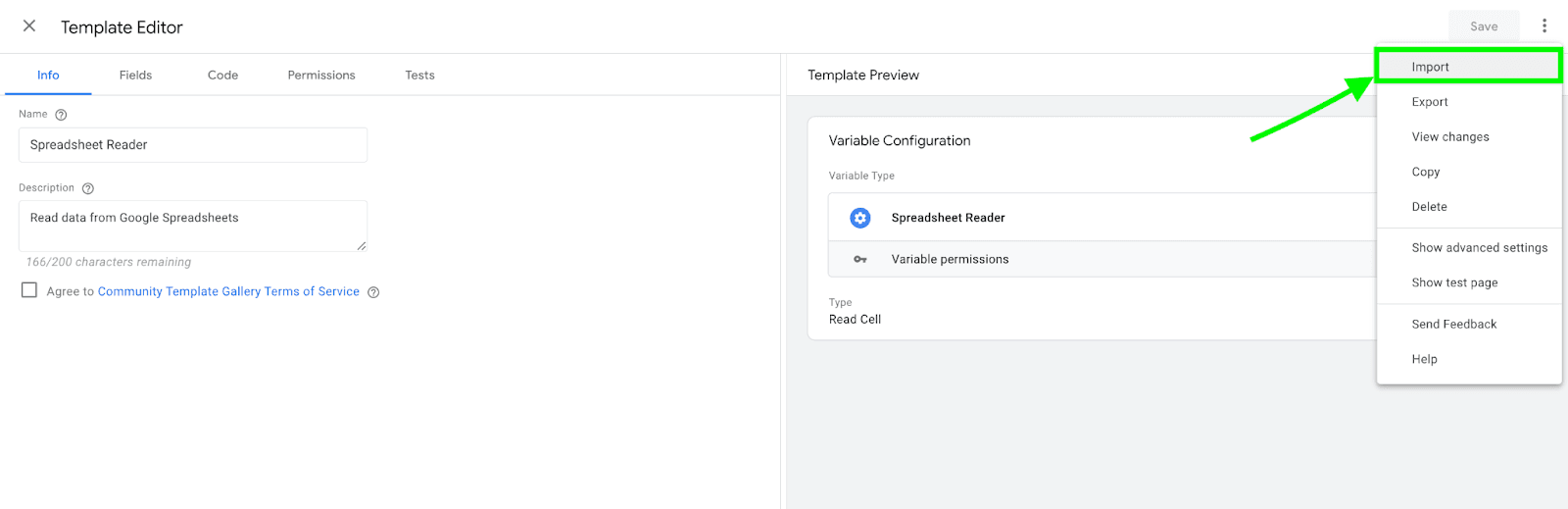
1. Download Spreadsheet reader variable from GitHub or add it from the sGTM Template Gallery -> Import Spreadsheet variable to server Google Tag Manager by clicking Templates -> New Variable Template -> Click three dots in the top right corner -> Click import -> Add template that you’ve recently downloaded -> Click Save.
2. Create a new variable -> Select action type; in this guide, I will show how Read Two Columns option works -> Add columns range. This method works only with two columns and returns an object that consists of these two columns. The first column will be used as a name, and the second column will be used as a correspondent value.




Comments