Google Tag Manager was initially designed to make the life of marketers easier. If you use Google Tag Manager web container, you no longer need to ask developers to add tracking pixels and wait for the next update to see your tracking on the production.
Server-side Google Tag Manager tagging is more complicated than the web container set up, at least for now, since the idea and technology behind server tagging are entirely different from what we used to have on the web. But server-side tagging will give your site huge benefits. Server-side tagging is getting more popular due to its ability to track people using AdBlockers, browsers with ITPs, and other tracking restrictions.
The purpose of this article is not to convince you to start using server-side tagging (there is another blog post that describes the main benefits of server-side tracking). I assume that you’ve already decided to implement server-side tagging on your site. This blog post will show you how to check whether Server-Side tracking for Universal Analytics, GA4, and Facebook conversion API was set up correctly.
We will go through these methods: checking server-side tagging in Tag Manager server container debug mode, Facebook event testing tool, and developers tool inside your browser. Let’s get started.
This video shows how to test server-side Google Analytics?
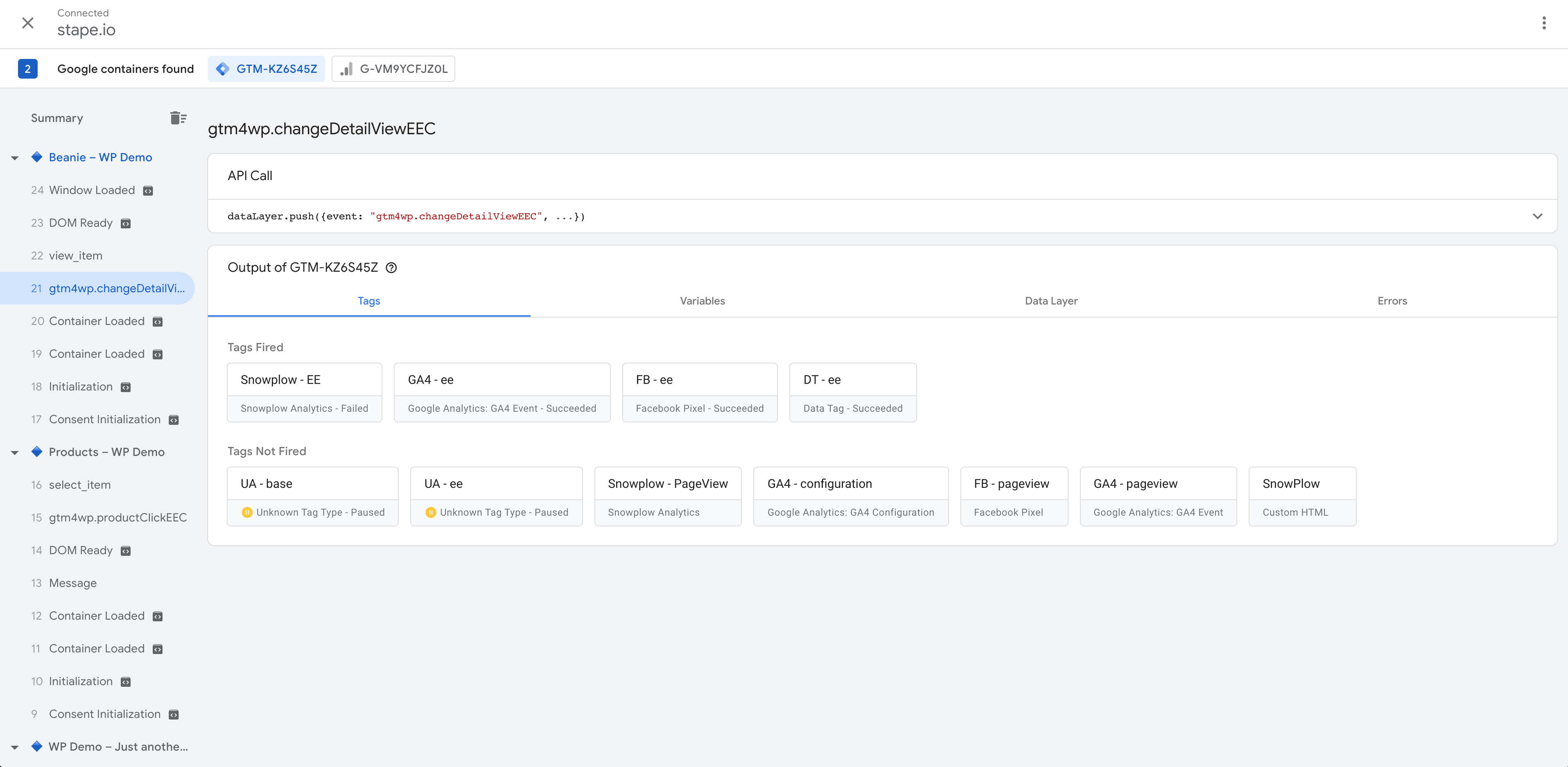
I suggest starting with the Tag Manager preview and debug mode to ensure that your tags are triggering when they should. GTM debug tool will show you which tags and events were added to the site and whether they fired or not on particular pages/triggers.
Tag manager server container debug mode works similarly to web debugger. Just click the preview button on the top right corner. Then, navigate to the different pages and click on the button or perform events set up in the server container.
Return to the Tag Manager debugger and check which tags and events were triggered and if all required parameters were sent to the dataLayer. If everything works correctly, we can move to the next step.




Comments