
Ivanna Holubovska
AuthorLooking to set up a Google Tag Manager Server container on your WordPress site? Not sure if you need server-side tagging? If so, then this article is right for you. I will show you how to correctly set up Server-Side Tagging in WordPress (including WooCommerce stores) and explain the benefits. I will guide you on how to push Universal Analytics and Facebook tracking from the server-side.
Google Tag Manager Server Container was released in summer 2020. Like Google Tag Manager web container, server-side tagging was created to manage different tracking pixels called ‘tags’ on your website. But the technology behind server containers is entirely different from what we used to have in the web container. Google also added a new object to the server container that is called “Client”.
Server-Side Tagging for WordPress allows you to run the tracking scripts on the cloud servers instead of the client-side (user browser). Let me show you the difference between web and server tagging on the Universal Analytics example. If you are running a UA script on the web container, your website connects to analytics.google.com and sends a collect request to your UA property. If Universal Analytics is running via a server container, requests are sent to the cloud server. And this cloud server sends information to your UA account.
1. Faster site speed
You will reduce the page weight due to requests and javascript not being loaded in the browser. Everything will be processed on the server. We have a case study that compares the page speed difference between running scripts on the web vs. the server container.
2. Transitioning from 3rd party cookies to first-party
During the last several years, user privacy has become one of the hottest topics in the digital world — we have regulations like GDPR (EU) and CCPA (California). Browsers started to use algorithms that prevent user tracking like Safari’s “Intelligent Tracking Prevention” (ITP) and Firefox’s “Enhanced Tracking Prevention” (ETP). In 2020, Google announced a plan to end the support of third-party cookies. And with the AdBlocker popularity growing annually by 1-2%, the share of users blocking ads grows. For instance, around 27% of US users browse with ad blockers.
If you are running a server container from a custom subdomain within your main website hierarchy, you will make a 3rd party cookie – 1st party.
3. Complete Data Control.
You own all data and decide what information to send to each platform. Third-party vendors (like Google Analytics, Facebook pixel, etc.) will not get any information they want, only the data you send to them via a cloud server.
4. Hide Tracking IDs and Secret API keys.
If you are using server-side tagging, tracking IDs and API keys will be hidden from users.
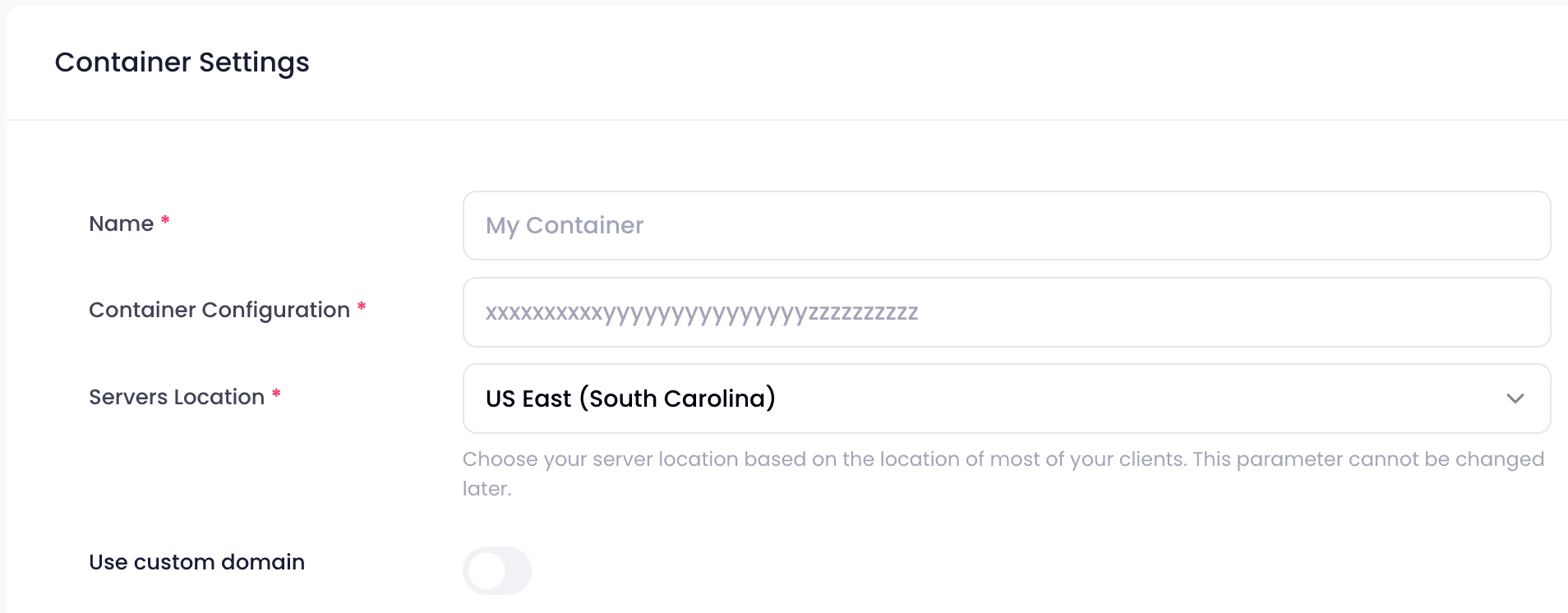
1. The first thing you need to do is create a Google Tag Manager server container. If you don’t have a web container, you need to set it up first. Follow this instruction from Google. Open https://tagmanager.google.com/, choose the website where you want to set up server-side tagging. Click Admin and + on the container section. Add container name, and in the target platform, select server and click create.




Comments