
Ivanna Holubovska
AuthorWe created a tag for the Google Tag Manager server container that sends a notification to Slack. With the help of this tag, you can send any information about user actions on your site to the Slack channel. This tag allows adding variables, such as product and user information, inside the notification. You can notify your team about a new purchase, abandoned cart, or a new quote request from clients. One of the use cases of this tag is to send notifications to the sales team Slack channel about new orders immediately. You can also use this tag to monitor your site stability.
To send Slack notifications, you will need to have a configured Google Tag Manager Server container with the user and event data you want to send inside the Slack message. You will also need to create a Slack app and generate a webhook URL for this app. It may sound complicated, but everything can be set up in a few clicks. I will cover all steps in this how-to, including creating a Slack app and webhook URL.
One of the non-standard use cases of the Slack tag is to verify whether Facebook conversion tracking was blocked for iOS 14 users who opted out of tracking. Let’s say you’ve implemented Facebook conversion API, and you’re using a custom subdomain for the tagging server. It means that you can see events in the test events tool inside the Facebook business manager. But how can you verify that Facebook conversion tracking works for iOS 14 users who opted out of tracking?
You can set up Slack Tags that will use the same trigger as your Facebook CAPI. Open your FB ad on the iPhone that opted out of Facebook tracking, click on the ad, and test events. If tracking works, you will see Slack notifications. Since Slack and Facebook use the same triggers, you can say that Facebook tracking works too.
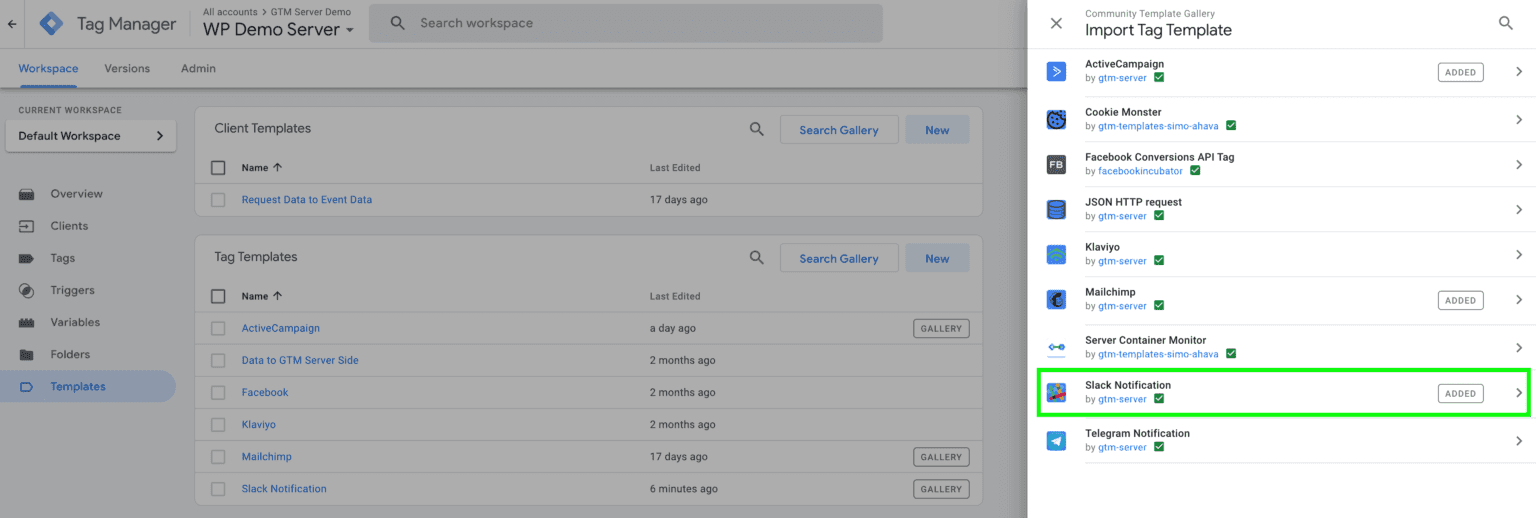
2. Open Server container and add Slack tag from the template gallery or by clicking this link.




Comments